
Permissions & Approvals
The agent runs on your machine, with your user's permissions, against real files. Permissions determine which calls run, ask, or are refused; approving a shell command grants trust, not a filesystem sandbox. Read the model rather than shrugging at the first approval prompt.
The four modes
The permission chip in the composer shows the current mode. ⇧Tab with the chat focused cycles through them.
| Mode | File edits | Shell commands |
|---|---|---|
| Manual | Ask every time | Allowlist + recognized skill/attachment read carve-out; otherwise ask |
| Accept Edits | Automatic | Allowlist + recognized skill/attachment read carve-out; otherwise ask |
| Plan | Refused (edit_file, write_file) | Same allowlist + carve-out rules as Accept Edits; otherwise ask |
| Bypass | Automatic | Automatic — the allowlist is ignored |
New installs start on Accept Edits.
The ⇧Tab cycle runs Manual → Accept Edits → Plan → Bypass, with Bypass last so it is never the mode you land on by pressing ⇧Tab once. The Settings picker lists the four in its own order, Bypass first.
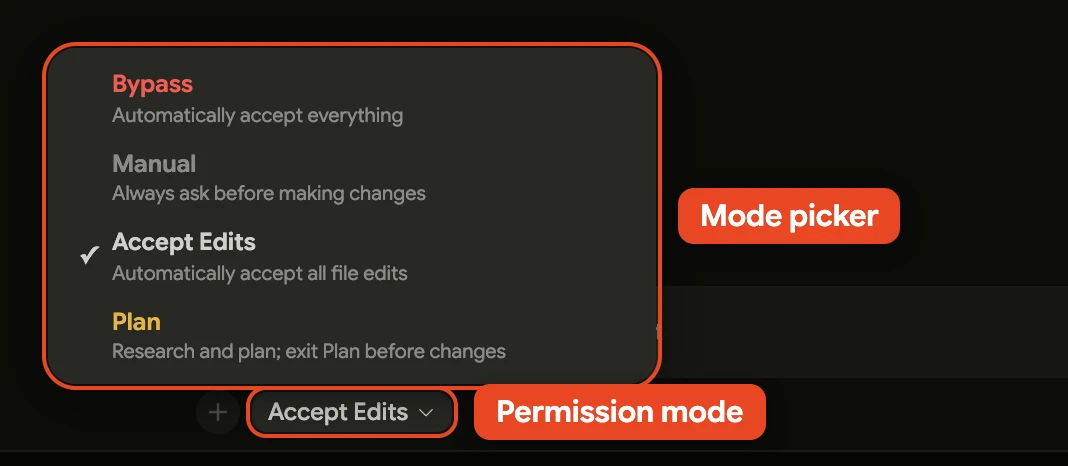
Manual
Gated changes stop and ask. Shell allowlist matches and recognized non-TTY skill/attachment reads are exceptions. Manual is the right choice when you are working in a directory where a mistake is expensive — a live case, a repo you have not committed, anything shared.
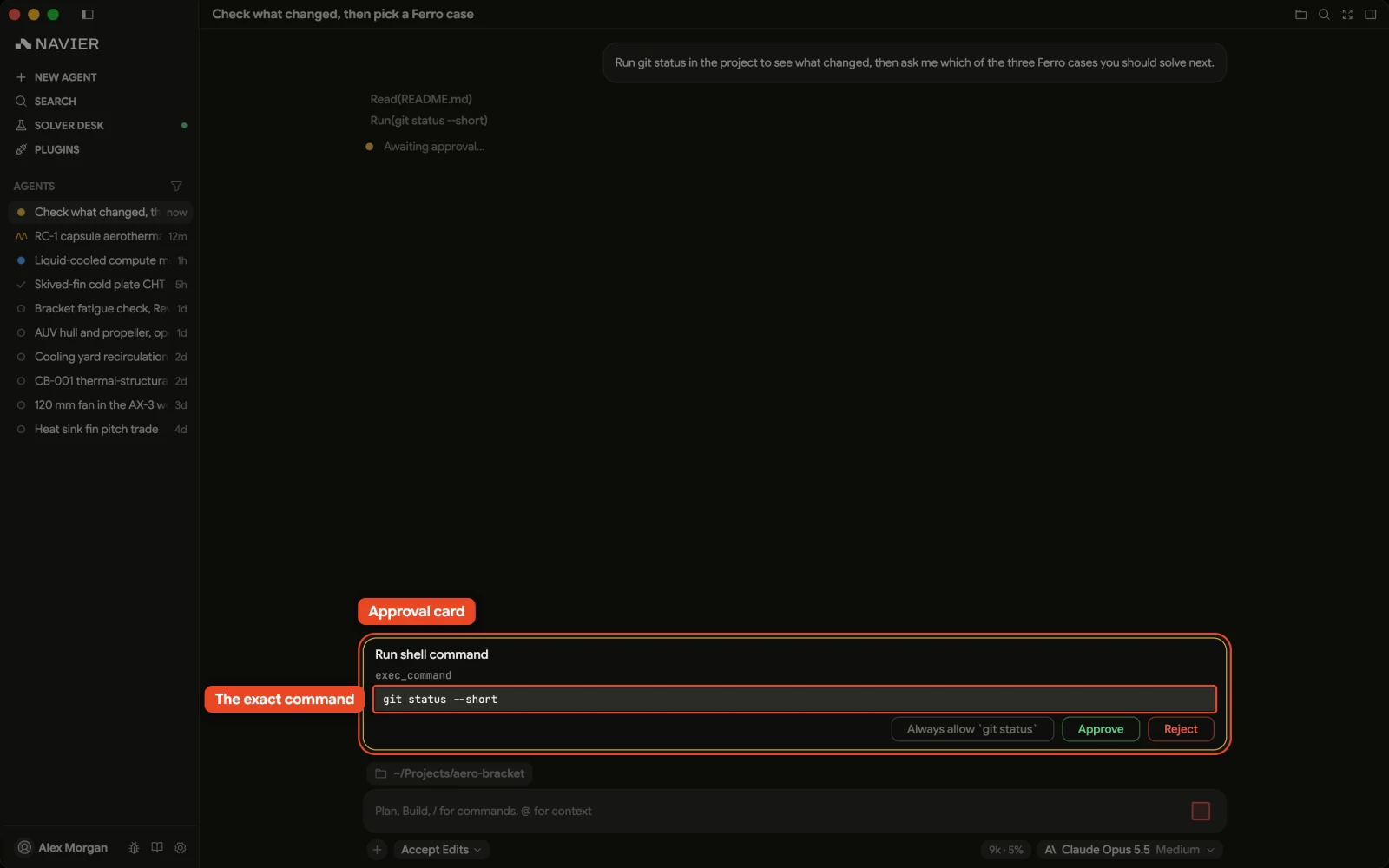
A gated edit asks on a card above the composer, whether or not the folder is a
git repository. Its bar reads Create, Edit or Delete with the file's
path and its +/− line counts, beside Approve and Reject; the
proposed diff is in the body. One card per edit, in arrival order, and only the
first opens by itself, so a burst of edits does not bury the composer.
Accept Edits
File creation and content edits through write_file and edit_file go through
without asking. File renames and deletions use shell commands, which still stop
unless they match your allowlist or the shared skill/attachment read carve-out.
This is the working default and the mode most sessions should be in.
It relies on you reading the diff. Edits being automatic is only safe because they are reviewable.
Plan
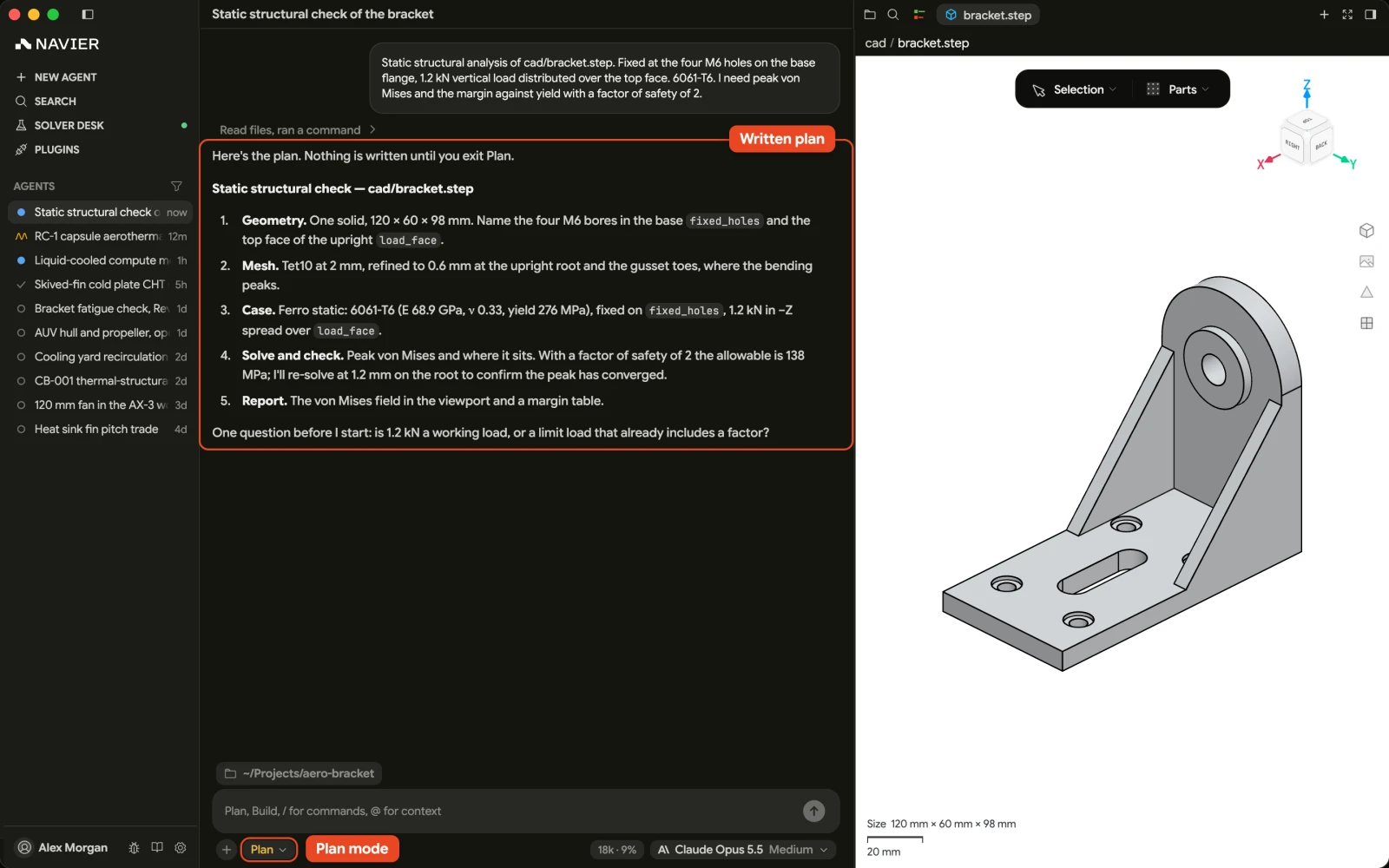
The agent is instructed to research and propose a plan without changing files,
system state, or repository state. edit_file, write_file, external MCP tools, CAD and
Python code execution are refused. Review the plan, then exit Plan before asking
for implementation — approving the plan does not enable file edits inside Plan.
Shell commands use exactly the same allowlist and non-TTY read carve-out rules as Accept Edits; other commands ask. The agent is instructed not to submit state-changing shell commands or input, even if a rule or approval permits them.
Plan is not a read-only shell or filesystem sandbox. An allowlisted or explicitly approved command can still write or change state. You own the trust granted by your shell rules and approvals.
Judge a dry-run by its effects, not its flag name. Builds, tests, formatters, and validation commands can write caches, logs, artifacts, or state. If unsure, inspect without running the command or exit Plan first.
Use it at the start of anything substantial. It is the cheapest way to find out that the agent misunderstood the problem.
Bypass
Everything is approved automatically and the allowlist is ignored entirely — except the tools that are gated regardless of mode, below, which still ask.
In Bypass the agent can run any command your user account can run, including destructive ones, without asking. Use it for a scratch directory or a throwaway worktree, not for your main checkout.
Code the agent runs
prism_cad_run executes a build123d script and prism_python_run runs Python
the agent wrote. Either can overwrite files already in the project, so both
follow the mode rather than running on their own:
| Mode | prism_cad_run and prism_python_run |
|---|---|
| Manual | Shows an approval card |
| Accept Edits | Runs |
| Plan | Refused |
| Bypass | Runs |
Switching mode mid-turn
A mode change rechecks calls that have not run yet, including ones you already approved. Switch to Plan with an approved file edit, external MCP call, or geometry build still waiting and it is refused. Shell commands still follow the shared allowlist/carve-out filter; a prior explicit approval can satisfy a shell or input prompt after the switch. Switch from Bypass to Manual or Accept Edits and an unmatched waiting shell or external MCP call stops to ask.
Changing mode does not stop or freeze already-running processes or clear their remembered sessions. Plan can read their output without containing their effects. Host gating updates immediately, but the agent's refreshed Plan instructions arrive asynchronously; an in-flight response is not rewritten.
Where the agent may read and write
Mode decides whether a change asks. Location decides whether it is allowed at all. Writes stay inside the project root plus two places Qubis owns — your skills folder and a scratch directory — and no mode lifts that.
| Location | Read | Write | Shell working directory |
|---|---|---|---|
| The project root | Allow | Edit mode | Allow |
| Your skills folder | Allow | Edit mode | Allow |
Scratch, <temp>/prism-scratch | Allow | Allow | Allow |
| A credential store under the root | Prompt | Prompt | Allow |
.git, .navier, .prism under the root | Prompt | Refused | Refused |
| Bundled skills, pasted attachments | Allow | Refused | Allow |
| Anywhere else outside the root | Prompt | Refused | Prompt |
| A dotfile directory outside the root | Refused | Refused | Refused |
"Edit mode" is the four modes above: a diff card in Manual, automatic in Accept Edits, refused in Plan. Bypass lifts the prompts in this table; it never lifts a refusal.
- Scratch is throwaway space — the scripts, caches, and intermediate renders a task needs but you will never read. It is created by the first write, and nothing else in the OS temporary directory is readable beyond an image the agent is asked to view — and a shell working directory there is refused.
- Your skills folder is edited like a project file, so you can ask the agent
to write or revise a skill — see Skills. The bundled
skills under
.system/stay read-only. - Reads outside the root ask rather than failing. Point the agent at a file in Downloads or a sibling case folder and you get an approval card; a shell working directory outside the root asks too, and your allowlist does not cover it. Writes outside the root stay refused.
- Sending you a file asks exactly where reading it would.
send_user_filereads the file off this machine and hands it to the thread, so a path inside the project or the scratch directory goes without a card and one outside the root gets the same read approval as any other outside read. - Credential stores under the root —
.ssh,.aws,.gnupg,.kube,.docker,.azure,.config,.local,.netrc,.git-credentials,.npmrc,.pypirc, and.password-store— prompt on read as well as write, and Accept Edits does not cover them. This is what keeps~/.sshbehind a card when the workspace is your home directory.
The shell allowlist
Approving ls for the two-hundredth time is not security, it is a habit that
teaches you to click Approve without reading. The allowlist exists so that the
prompts you do get are worth reading.
A rule matches on an argv prefix: the parsed command must start with the
words in the rule. A rule of git status matches git status --short but not
git push.
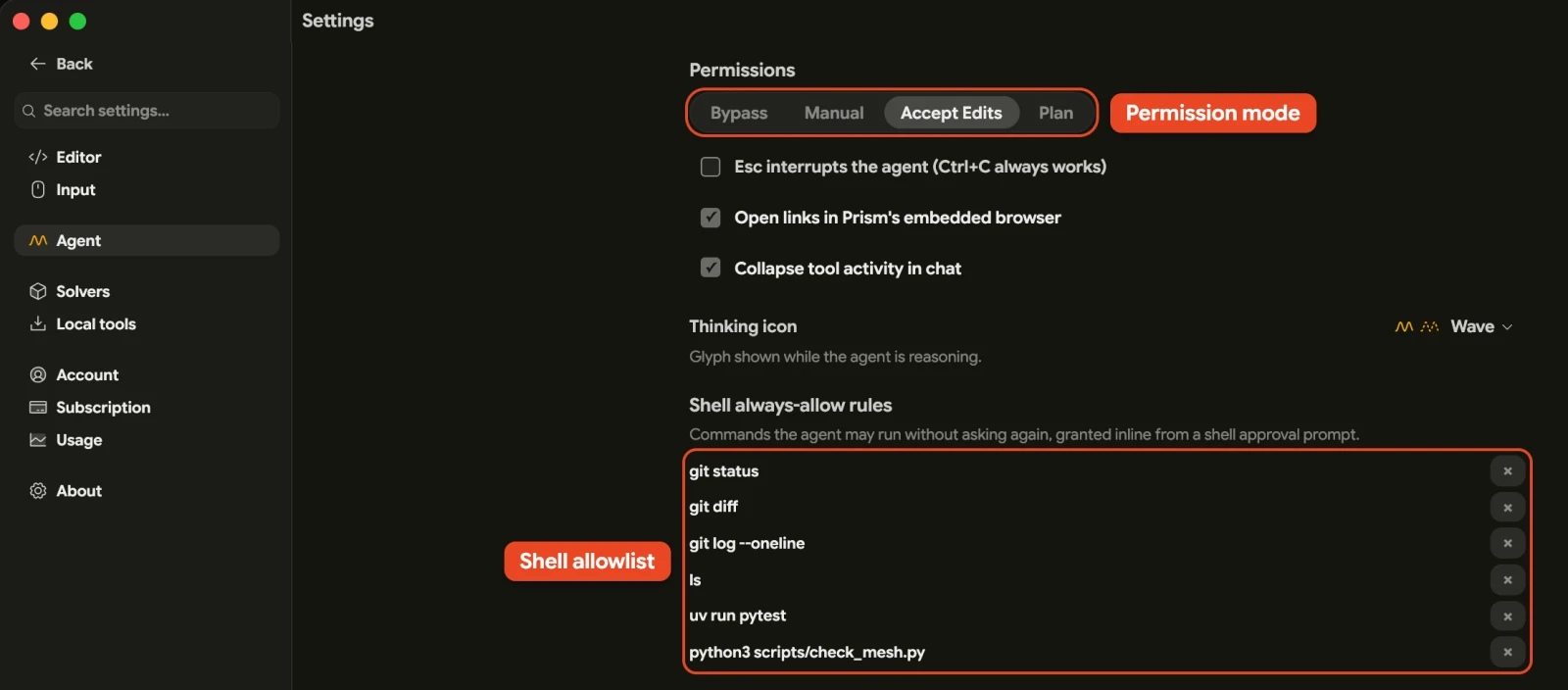
Rules are consulted in Manual, Accept Edits, and Plan. Only
Bypass ignores them because it already approves every shell command.
Saving a rule, including with Always allow on a card, is a trust decision:
a broad rule such as sed can allow writes or execution in Plan too.
Skill and attachment reads
All three modes share a no-prompt exception for non-TTY commands with a bare
head of cat, head, less, ls, rg, grep, or sed, with at least one
detected path and all such paths under the skills directory, the scratch
directory, or the project's .prism/attachments.
Ordinary project-file reads do not qualify; they still need a matching rule
or approval. Compound commands and rg --pre* do not qualify either.
For example, sed -n '1,20p' .prism/attachments/notes.txt can run without a
card. In-place flags such as -i, -ni, and --in-place (including suffixes
and long-option abbreviations) exclude the sed carve-out, but a user rule can
still allow them. This is only a shallow flag check: sed script writes (w,
W, or s///w) and GNU execution (e or s///e) are not inspected. Script
files and embedded paths are not validated for safety, and attached option
operands are not fully path-checked. The exception is a convenience, not proof
that a program cannot write or execute; conservative flag checks can also
prompt for an unusual flag-looking filename.
Input to running sessions
In Plan, an empty output poll of a remembered exec session runs without a card
(write_stdin with omitted, null, or empty chars). Every nonempty payload
asks, including whitespace, a newline, Ctrl-C, or escape keys. Unknown session
ids ask too. Manual and Accept Edits still allow input to remembered sessions;
Bypass allows it regardless. An approval can permit input, but the agent is
instructed never to use it to bypass Plan's no-change rule.
What the allowlist refuses to match
A command containing shell metacharacters never matches a rule, no matter what its first words are. That covers:
&& || ; | & $( ${
backtick > < newline carriage return
So git status is allowlisted, but git status && rm -rf build is not — it
stops and asks. The prefix match cannot be used to smuggle a second command in
behind an approved first one.
Choosing what to allowlist
Good candidates are read-only, cheap, and frequent:
ls
git status
git diff
git log
cat
rg
Bad candidates are anything that writes, installs, deletes, or reaches the network:
rm
git push
git reset
docker
curl
pip install
Allowlist the commands you are tired of approving, not the commands that would be convenient to skip. If approving it makes you pause, that pause is the feature.
Per-tool approvals
Some tools are gated regardless of mode, because their effect is larger than a file edit. Controlling the solver daemon's lifecycle is one — a restart or stop affects runs that may not be yours — and so is changing your scheduled tasks: the agent can list them unasked, but creating, editing, pausing or deleting one shows a card first.
The approval card always shows the concrete call, not a category. Read the arguments, not the tool name.
Cloud jobs and transfers
Work the agent sends to Qubis Cloud costs money on someone's account, so every piece of it is approved on its own, in every mode — Bypass included — and for subagents as well as the thread you are in. There is no way to allow cloud work for a conversation once and be done with it.
| Card | What it asks for |
|---|---|
| Upload inputs to Qubis Cloud | The folder to copy to cloud storage, with the file count and estimated size |
| Run on Qubis Cloud | The Machine, the Solver image, the Hourly rate, and the command |
| Download cloud job results | Where to save, how many files, and their selected size — Show files lists them |
The job card's bar carries Approve and Reject, and the job's name when the request has one. Below them it lists the machine, the solver image, and the hourly rate above the command, which takes a copy chip when you hover the card. Under those it states that the machine is billed while it runs and that your approval covers that one job. Approve launches it; Reject does not, and the agent is told not to resubmit without new instructions from you. A job card waits 20 minutes for an answer, whether or not the computer that asked stays connected. A download keeps files already on disk: the size on the card is the size you selected, not the bytes still to come. A request Qubis cannot read says so and shows the raw JSON instead, with Approve disabled — reject it and ask for a new submission.
In Plan mode the agent can look: list images and uploads, read status and outputs. Submitting, retrying, and cancelling a job are all refused there.
Approvals from your other computers
An approval belongs to the thread, not to one machine. A card waiting in a thread shows up in Qubis on every computer you are signed in on, above the composer, with the same Approve and Reject buttons. A tool card names the machine it came from under its summary — on machine, or on another computer before the agent service names it. Answer it wherever you are sitting; the first answer wins, and the others retire the card.
An agent question is not parked on one computer at all: the agent service lists it to every client watching the thread, so the question card is drawn in full — options, context, Skip — wherever you are signed in, and on the phone apps. Answer it from whichever one you are at; the first answer is the one the agent gets, and the card clears on the others.
Two things belong to the machine that asked.
A card for one of Qubis's own tools — the prism_* calls that drive this
app, prism_ask_user_question aside — is answerable only there, because only
that Qubis can carry it out. The copy you see elsewhere reads Answer this on
machine and carries no buttons.
And a tool card's lifetime: it lives only while that computer is running — if it quits or loses its connection, the call is left parked and the card goes with it, where a cloud submission's 20 minutes run on the agent service instead.
Approving a cloud submission still costs money on your account, so it also needs the thread out of Plan mode, from whichever computer you answer on. A card that has already been answered, or has run out of time, says so instead of acting: This approval is expired or no longer pending.
When the agent asks you a question
Distinct from a permission prompt: the agent can also ask a genuine question — which of two approaches you want, which face is the mounting surface, what material to use. It is told to ask rather than write the choices out as text, so expect a card for any decision that is yours.
The card appears above the composer and the agent waits on it: the question as a heading, numbered options, each with an optional line of description, and an Other row for an answer the options do not cover. Answer it from the card, or just type in the composer. The keys are on Shortcuts.
A question can carry its own context below the heading — the facts, constraints or trade-offs behind the decision — so the card stands on its own instead of asking you to scroll back through the transcript. A long one scrolls in place rather than pushing the options off screen.
You are never cornered by it. Skip leaves a question unanswered and the agent carries on with its best judgment rather than asking again, and the × hands over whatever you have answered so far. Closing Qubis mid-question is safe: the agent keeps waiting, and the card is back when you reopen the thread.
Any Qubis you are signed in on, and the phone apps, draw the same card and can answer it — see Approvals from your other computers.
A workable default
For most engineering work:
- Sit in Accept Edits.
- Start substantial tasks in Plan, review the plan, then exit Plan before implementation.
- Allowlist a handful of read-only commands.
- Read the diff before you accept a result.
- Reach for Bypass only in a worktree or a scratch directory you would not mind losing.