
Threads & Workspaces
A thread is one conversation with the agent. A workspace is the folder that conversation is about. Everything in Qubis hangs off that pair — which files the agent can touch, what the right pane shows, which git repository the diff is against.
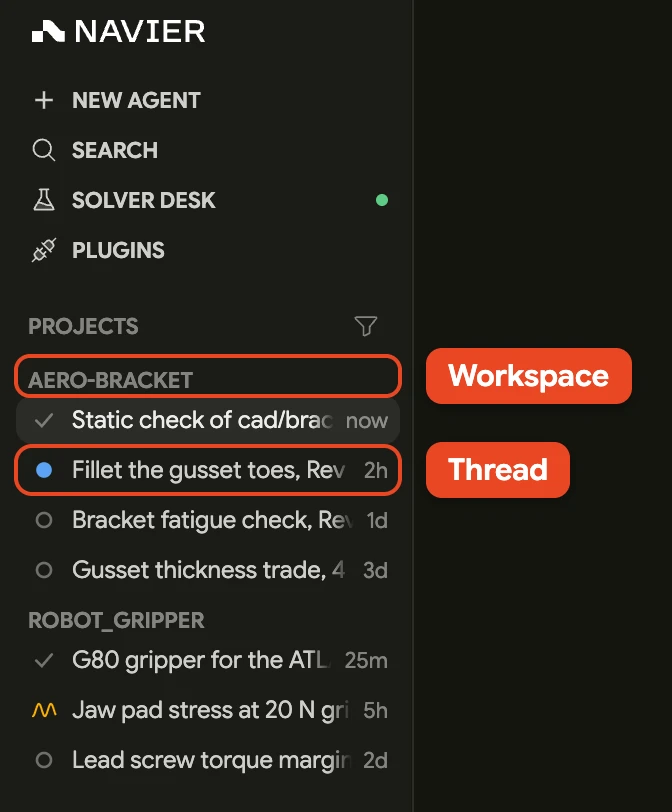
Grounded and ungrounded threads
A thread with a workspace folder is grounded. A thread without one is ungrounded, and it is deliberately limited:
| Ungrounded | Grounded | |
|---|---|---|
| Chat with the agent | Yes | Yes |
| Read and edit files | No | Yes |
| Run shell commands | No | Yes |
| Right pane (editor, diff, terminal) | Unavailable | Available |
| Git integration | — | If the folder is a repository |
| Solver runs | No | Yes |
Qubis starts on an ungrounded scratch thread so you can ask a question without committing to a directory first. As soon as you want work done on files, ground it.
Chats from another computer
A thread you opened in Qubis on another machine shows up here, under a REMOTE group that leads the sidebar when it is grouped by Project. Its folder is not a folder on this computer, so it is not ungrounded: its tools, its files and its approval cards are over there, on the machine that hosts it.
You can still read it and steer it — type in the composer and the turn runs on
that machine. What this computer does not give you is a workspace: the folder
chip reads machine:/path, and the file explorer and search toggles are not
offered. The right pane's editor, diff, terminal and Agents views want a
workspace on this computer too, so a remote chat is chat-only here unless a tab
is already open. Click the monitor glyph beside the thread title for a small
panel naming the machine — with the OS user on it, when the agent service
reports one — and the folder the chat is grounded in there. Before the agent
service names the host, the machine reads another computer.
Running its tools here
A chat's tools are served by one computer at a time — its shell, its file tools and its app tools move together, so a chat can never run a command on one machine and read files on another. Act on a chat another computer hosts and what happens depends on that machine:
- It is still connected. Nothing is asked of you. Your turn runs on that machine, as a remote chat's turns do; the tools come here on their own once that machine lets go, and Qubis keeps trying in the background until it does.
- It holds the chat but is no longer connected. Qubis asks, once, on a card reading Connect this chat's tools here? and naming the machine the tools are assigned to. Connect here brings all of them to this computer; Leave it leaves the chat where it is.
Moving one here
Clicking the folder chip offers the workspace picker, and picking a folder moves the chat to this computer, in that folder, with its tools: its tooltip reads Pick a folder to run it on this computer. The chat stays remote until this machine is actually serving its tools, and then it is an ordinary grounded thread — the move is saved, so it survives a restart.
When the host is offline
While a remote chat is open, Qubis watches which machine is serving it. When that machine stops answering, the folder chip reads machine · offline in the warning colour and its tooltip says its tools and approvals wait until it is back. A turn that is waiting on the host to connect its tools reads Waiting for machine… where it would otherwise read Connecting tools…. The chat waits rather than failing; picking a folder runs it on this computer instead.
Model, effort and permission mode
The model and effort shown for a remote chat follow the host, so the pickers track what that machine is set to rather than going stale. Its permission mode is the host's too, and the chip is a readout: changing it from here needs Let my other computers change the permission mode of chats running here turned on over there, in Settings → Agent. Without it, the chip's tooltip reads Set on machine, which doesn't allow changes from other computers.
Attaching a workspace
Two ways, equivalent in the end:
- The folder chip in the composer — reading Pick a folder to continue while the thread is ungrounded. Clicking it lists your recent projects, newest first. Type to filter, ↑/↓ to move, Enter to pick, Esc to close. Open Folder… is the last row and goes to the system picker, as does a first run with no recents. Once the thread has messages — or on a worktree thread, whose checkout is fixed — the chip copies the workspace path instead of re-picking it.
- ⇧⌘O / Ctrl+Shift+O — starts a new thread and opens the picker. If the current thread is empty it reuses it rather than leaving an empty thread behind.

Pick the directory that is the natural root of the work — the repo root, the project folder, the directory holding your case files. Picking a parent that is too broad slows down search; picking a subdirectory too narrow means the agent cannot see files it needs.
Choosing a good root
The workspace root sets the boundary for file reads, edits, search, and shell commands. A few rules of thumb:
- A git repository root is almost always right if the work is in a repo. You get the branch, per-file status, the diff view, and the option of isolating work in a worktree.
- A case directory works well for one-off solver work — an OpenFOAM case, a folder of STEP files.
- Your home directory is a bad root. Search becomes slow and the agent has far more surface area than the task needs.
Working with threads
| Action | How |
|---|---|
| New thread | ⌘N / Ctrl+N |
| New thread with a fresh workspace | ⇧⌘O / Ctrl+Shift+O |
| Switch thread | Click it in the sidebar |
| Find a thread | Search in the sidebar, or ⌘K / Ctrl+K |
| Rename thread | Click the title in the title bar and type |
| Fork a thread | Right-click it in the sidebar → Fork |
| Mark a thread unread | Right-click it in the sidebar → Mark as Unread |
| Delete thread | Right-click it in the sidebar → Delete |
| Show/hide the sidebar | ⌘B / Ctrl+B |
Deleting the thread you are in moves you to the nearest surviving thread in the same project and section — the next row down, or the one above if it was the last. Deleting every thread in a project leaves you on a fresh draft already grounded there, rather than on some unrelated thread from another folder. A multi-row selection — Delete N agents — works the destination out once, before it deletes anything.
A deleted thread goes from the agent service too. One that cannot be removed there stays hidden here, and Qubis retries it the next time it loads your threads.
Search in the sidebar opens the command palette, which lists your threads among everything else; its Agents pill narrows it to threads alone. An empty query offers the five most recently active; type to reach the rest. Each row carries its age and, for a thread rooted anywhere other than the folder you are in, the name of the folder it runs in. Picking one switches to it and puts the cursor in its composer. The palette orders by any activity, so its order can differ from the sidebar's.
Each sidebar row carries its age at the right edge — now, 14m, 3h, 2d, 5mo —
measured from your last message in that thread. The Date groups bucket on
the same stamp, and so does Sort by → Recency, so agent output alone never
reorders the list: a long solve reporting back leaves a thread where your own
last message put it. The unread dot and the command palette still follow any
activity.
Mark as Unread sits between Fork and Archive on a thread's right-click menu — between Pin and Archive on a draft, which has no Fork. The row's title brightens again until you open the thread, and takes the unread dot where its last run left no status glyph of its own. It stays that way across a restart. Its date bucket and its place in the order do not move. The item is missing from the thread you have open, because switching away from it marks it read again.
When the sidebar is grouped by Project or Date, each group initially shows eight threads. Select Show more to reveal the rest of that group; ungrouped threads are not capped this way.
Drag an ordinary agent row to reorder it within its current Project or Date group. Drop it between rows or at the end of the group; Qubis remembers the order. Pinned and Archived sections keep their own ordering rules.
Threads persist across restarts, with their transcripts. Closing Qubis in the middle of a conversation and reopening it later picks up where you left off.
If you type into a new scratch thread and leave it without sending, New Chat resumes the newest hidden draft. Sent drafts are cleared, so they do not reappear on a later New Chat.

Forking a thread
Fork on a thread's right-click menu branches the conversation: a new thread that continues from what the agent has done so far, leaving the original untouched. It is the move for "try the other approach from here" — you keep both, and neither sees the other's later turns.
The fork is titled title (fork), keeps the source's model and reasoning effort, and ends with a Forked from another thread notice in the source thread's accent, under the history it carries over. History is copied up to the last settled point in the conversation: a turn still running, the unanswered tool calls before it, and anything you have queued behind it stay in the original, so a fork never re-runs a tool call you were waiting on. Files the agent sent you, attached plugin servers, sub-agents and the thread's usage history are not copied.
What happens to the workspace depends on the thread:
| The source thread | The fork |
|---|---|
| Grounded in a folder | The same folder |
| Uses a git worktree | A worktree of its own, copied from the source's — same commit, uncommitted changes applied, staged ones still staged, untracked files copied. Ignored files stay behind |
| Hosted on another computer | Stays on that computer, in the same folder |
| Ungrounded, with no folder | Ungrounded too |
| A draft with nothing sent yet | Fork is not offered — there is no conversation to copy |
If the source was on a model that is no longer selectable, the fork moves to your default model.
When to start a new thread
Start a new one whenever the subject changes. A thread carries its whole transcript as context, which is what makes follow-up questions work — and also what makes an unfocused thread progressively worse at everything.
Good reasons to start fresh:
- Different part, assembly, or case.
- Different kind of work (setting up a mesh vs. writing a report).
- The current thread went down a wrong path and you would rather not have that reasoning in context.
- The thread has been running a long time and answers are getting vaguer.
Good reasons to stay:
- Follow-up questions on the same analysis.
- Iterating on a result the agent just produced.
- Anything where the agent's earlier reads and reasoning are still relevant.
Threads and the workspace state
A thread owns its conversation and its settings; the files it touches belong to the folder it is grounded in:
- The diff in the right pane is the change set of the thread's working tree, so two threads on the same checkout show the same changes.
- If the thread uses a git worktree, the isolation is per thread — see Reviewing Changes.
- Permission decisions you make apply to the session, and your shell allowlist is shared across threads.
Two threads on the same workspace edit the same files. Qubis does not sandbox them from each other, so if you want genuinely parallel work on one repository, put each thread in its own worktree.