
Keyboard Shortcuts
Shortcuts are written here with macOS modifiers. Substitute as follows and everything on this page works on Windows and Linux too:
| macOS | Windows / Linux |
|---|---|
| ⌘ | Ctrl |
| ⇧ | Shift |
| ⌥ | Alt |
The new-thread chord ⇧⌘O is Ctrl+Shift+O, and the tab-stepping chords ⌥⌘← / ⌥⌘→ are Ctrl+Alt+Left / Ctrl+Alt+Right. Function keys are the same key everywhere.
The one exception: ⌃
⌃ is a separate key only on macOS. Everywhere else it is the same physical key ⌘ already stands in for, so a chord that needs both can never fire there. Three chords are macOS-only for that reason, and Qubis hides their chips on the other platforms rather than advertising a shortcut that does nothing:
| macOS | Action | Windows / Linux |
|---|---|---|
| ⌃⌘F | Toggle right-pane maximized | Palette → Toggle Right Pane Maximized |
| ⌃G | Go to line | Palette → Go to Line... |
| ⌃` | Show the terminal | Ctrl+J does the same thing |
Find and replace is the other chord that is not a straight substitution — it is ⌥⌘F on macOS, Ctrl+H on Windows and Linux. macOS claims ⌘H for Hide Qubis before the window sees the key, so replace takes the Mac convention instead.
A few keys check the physical Ctrl key instead, and so behave identically on every platform: ⌃C to interrupt the agent (a pending question goes with it), ⌃Space for completion, and ⌃ + left-drag to orbit the viewport.
On Windows and Linux ⌃C and ⌘C are the same keystroke, and focus decides which one you get: Ctrl+C in the chat interrupts the agent, and Ctrl+C in the editor, the terminal, or a question card's answer field copies.
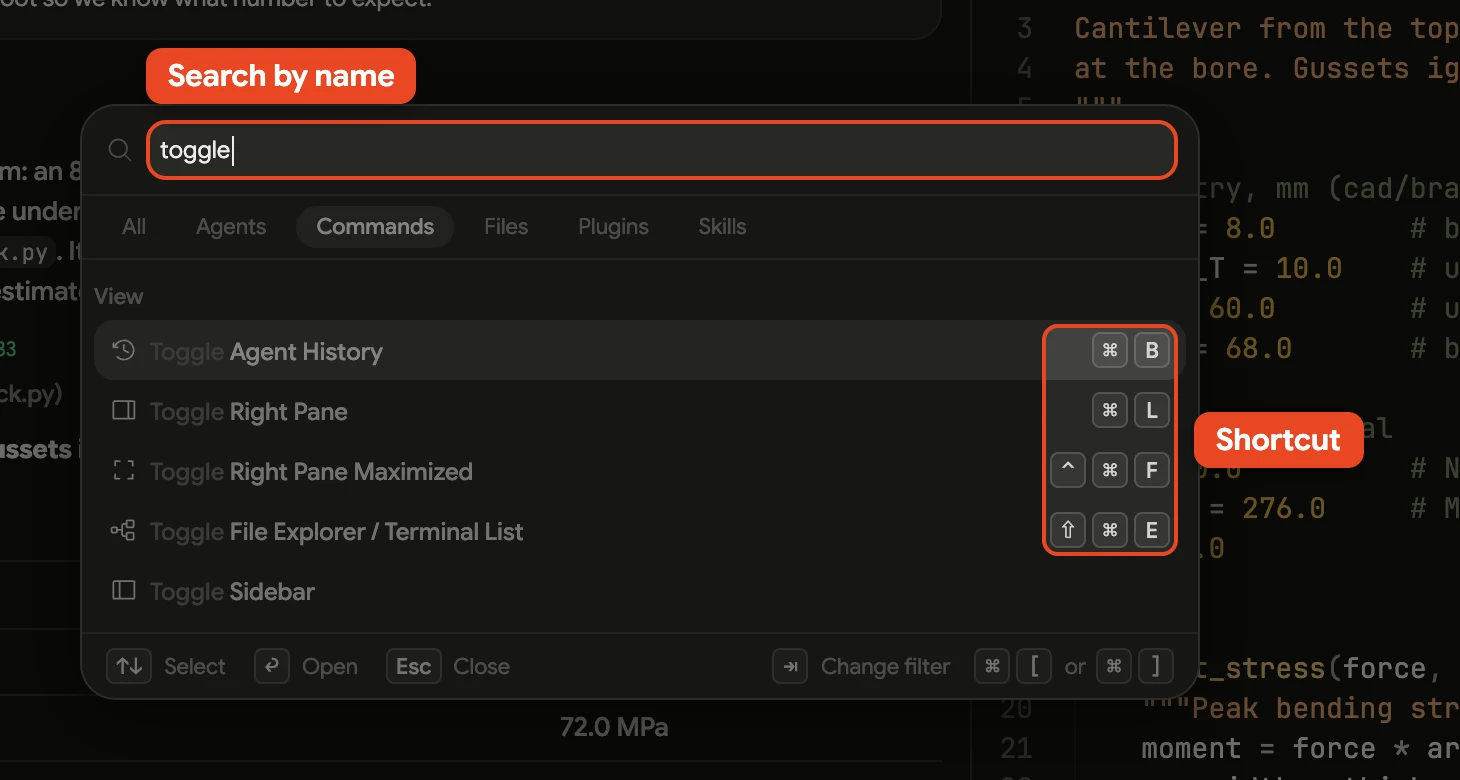
You do not need to memorize this page. ⌘K opens the command palette, and every command on it is searchable by name.
Inside the palette, the All / Agents / Commands / Files / Plugins / Skills pills are cycled with Tab and ⇧Tab, or with the bracket keys ⌘[ / ⌘]. A shortcut a visible row prints runs that row while the palette is open. The editing chords are the exception: undo, redo, select all, copy, cut, and paste belong to the query field while you are typing in it.
Agent
| Shortcut | Action |
|---|---|
| ⌘N | New agent thread |
| ⇧⌘O | New thread, and pick its workspace folder |
| ⇧Tab | Cycle permission mode (chat focused) |
| Enter | Send the message |
| ⌘Enter | Steer the message into the running turn |
| ⌃C | Interrupt a streaming response |
| Esc | Interrupt, if enabled in Settings → Agent |
| ⌘V | Paste — attaches a clipboard image if there is one |
| ⌥⌘↑ / ⌥⌘↓ | Previous / next thread |
Queueing and steering
While the agent is working, Enter queues your message behind the current turn, and the queue sends in order once the turn ends.
⌘Enter (Ctrl+Enter on Windows and Linux) steers instead: the message goes to the agent now, without stopping it, and the agent picks it up after its current step. On an idle thread the two keys do the same thing.
Messages already in the queue can be rewritten or reordered too. With the composer empty, ↑ pulls the queued prompts back into the composer as one block, joined with a blank line between them, so you can edit the batch and press Enter to queue it again as a single message. A message that carries an attachment, or that replaces an earlier one, stays in the dock instead: steer or remove those on their own.
To take back one message, ↓ selects the most recent queued message,
↑ / ↓ step through the rest, Enter pulls the selected one into the composer, and ⌘Enter steers it into the running turn ahead of the others. With nothing selected, ⌘Enter steers the newest queued message without touching the composer.
Each queued message also carries a Steer button and a ⋯ menu with Edit, which takes it off the queue and into the composer, Copy, which puts its text on the clipboard without the attachment block and leaves it queued, and Remove, which drops it and its attachments.
In the composer
Typing @ opens the file-and-context picker and / opens the command list. While either popup is up, ↑ / ↓ move the selection, Enter or Tab accepts it, and Esc dismisses it.
Answering the agent's questions
When the agent asks a question, it waits: a question card appears above the composer, and the agent carries on as soon as you answer it. The card has its own keys:
| Shortcut | Action |
|---|---|
| 1–9 | Pick an option and move on (on multi-select, toggle it) |
| ↑ / ↓ | Move the highlight; landing on Other puts the cursor in its field |
| Space | Pick the highlighted option without moving on (toggle it, on multi-select) |
| Enter | Next question, or submit on the last one |
| ⌘Enter | The same, from anywhere — the composer included |
| Skip | Leave this question unanswered and move on |
| ⌃C | Stop the agent (the question is cancelled with it) |
The Other row has the number after the last option; pressing it, like arrowing onto it, puts the cursor in the answer field so you can type straight away, and a free-text question opens with the cursor already there. Typing in the composer answers the current question too, and the × on the card hands the agent whatever you have answered so far and lets it continue. A skipped or dismissed question comes back to the agent as "no answer", and it carries on with its best judgment rather than asking again. Closing Qubis mid-question is fine: the agent keeps waiting, and the card is back when you reopen the thread.
The card's answer field is an ordinary text field. On Windows and Linux that means Ctrl+C copies while it has focus rather than stopping — click away, press Esc (if enabled in Settings → Agent), or use the Stop button.
Layout
| Shortcut | Action |
|---|---|
| ⌘B | Toggle the threads sidebar |
| ⌘L | Toggle the right pane |
| ⌃⌘F | Toggle right-pane maximized (macOS only) |
| ⇧⌘E | Toggle the file explorer / terminal list |
| ⌘D | Show the diff |
| ⌘E | Show the editor |
| ⌘J / ⌃` | Show the terminal |
| ⇧⌘F | Search the workspace |
| ⌘, | Open Settings |
| ⌘K | Command palette |
⇧⌘E, ⇧⌘F, ⌘L, and ⌃⌘F belong to the chat. The Solver Desk, Plugins, Scheduled, and Settings each take the content area outright, so on those pages the four do nothing rather than rearrange a page with no room for them.
Tabs and panes
| Shortcut | Action |
|---|---|
| ⌘T | New tab |
| ⌘W | Close tab (or window, if it is the last tab) |
| ⇧⌘T | Reopen the last closed tab |
| ⌥⌘← / ⌥⌘→ | Previous / next tab in the strip |
| ⇧⌘J | New terminal |
| ⇧⌘B | New browser tab (not on Linux) |
| ⇧⌘W | Close the window — quits, with confirmation |
| ⌘\ | Split horizontally |
| ⌘1–⌘9 | Focus pane by index |
| ⌘Q | Quit (with confirmation) |
Tab cycling runs the whole strip — editor, terminal, and browser tabs alike — not just whichever kind currently has focus.
Files and editing
| Shortcut | Action |
|---|---|
| ⌘O | Open file |
| ⌘S | Save |
| ⇧⌘S | Save as |
| ⌘Z / ⇧⌘Z | Undo / redo |
| ⌘A | Select all |
| ⌘F | Find |
| ⌘G | Find next |
| ⇧⌘G | Find previous |
| ⌥⌘F / Ctrl+H | Find and replace |
| ⇧⌘F | Search the workspace |
| ⌃G | Go to line |
| ⌘[ / ⌘] | Jump back / forward |
| F2 | Rename symbol |
| ⇧⌘R | Run the current file |
| ⌘/ | Toggle comment |
| ⇧⌘K | Delete line |
| ⇧⌘[ / ⇧⌘] | Fold / unfold |
| ⌃Space | Request completion |
| F12 | Go to definition |
| F8 / ⇧F8 | Next / previous diagnostic |
Zoom
| Shortcut | Action |
|---|---|
| ⌘+ | Increase text size |
| ⌘− | Decrease text size |
| ⌘0 | Reset text size |
Text size is one size for the whole app — the editor, the UI chrome, the chat and the terminal move together.
A PDF, a schematic or an image zooms instead of the text size, but only while the keyboard is in that document in the right pane — the document itself, or a field drawn on it such as find/replace, a rename, or a viewer's own inline field. Everywhere else the chords go to the text size: the composer, the terminal, a full-width page, the command palette, the explorer, the search fields. So a PDF sitting open on the right is not rescaled while you are typing in the chat.
Viewport
The 3D viewport is mouse-driven rather than keyboard-driven; see 3D Viewport for the full control set.
| Input | Action |
|---|---|
| Right-drag | Orbit |
| ⌃ + left-drag | Orbit |
| Middle-drag | Pan |
| ⇧ + right-drag | Pan |
| Scroll | Zoom |
| Left-click | Select |
| ⇧ + left-click | Extend selection |
Commands with no default shortcut
Reachable from the command palette:
- Toggle Sidebar
- Refresh File Explorer
- Split Editor Vertically / Horizontally, Close Split Pane
- Theme switching (nine themes)
- New Ferro Case, New NVPOST
- Open Solver Desk; Start / Restart / Stop Solver Daemon; Open Solver Daemon Log
- Git: Stage / Unstage Current File, Discard Changes, Refresh
- Check for Updates
On Windows and Linux, Go to Line... and Toggle Right Pane Maximized join this list — their chords use ⌃ and do not exist there.